Pricing Configuration
Setting Up Pricing
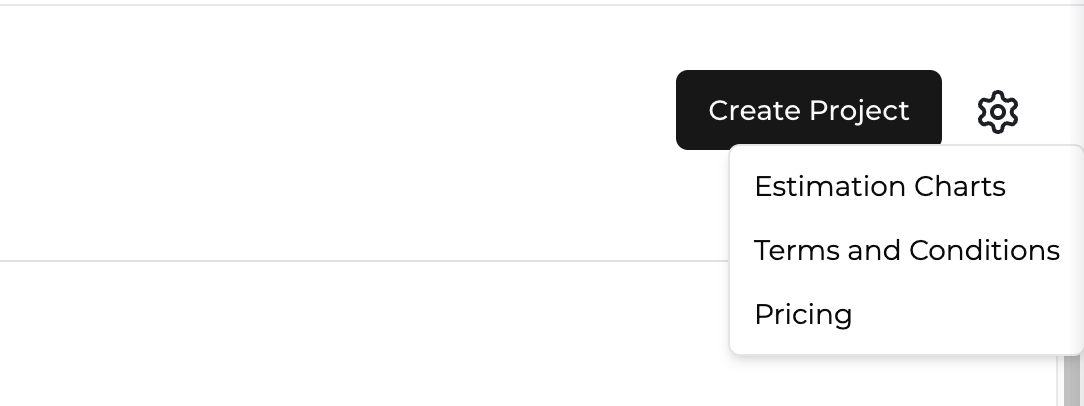
To upload pricing, click on the gear icon to the right of the "Create Project" button. Click "Pricing".
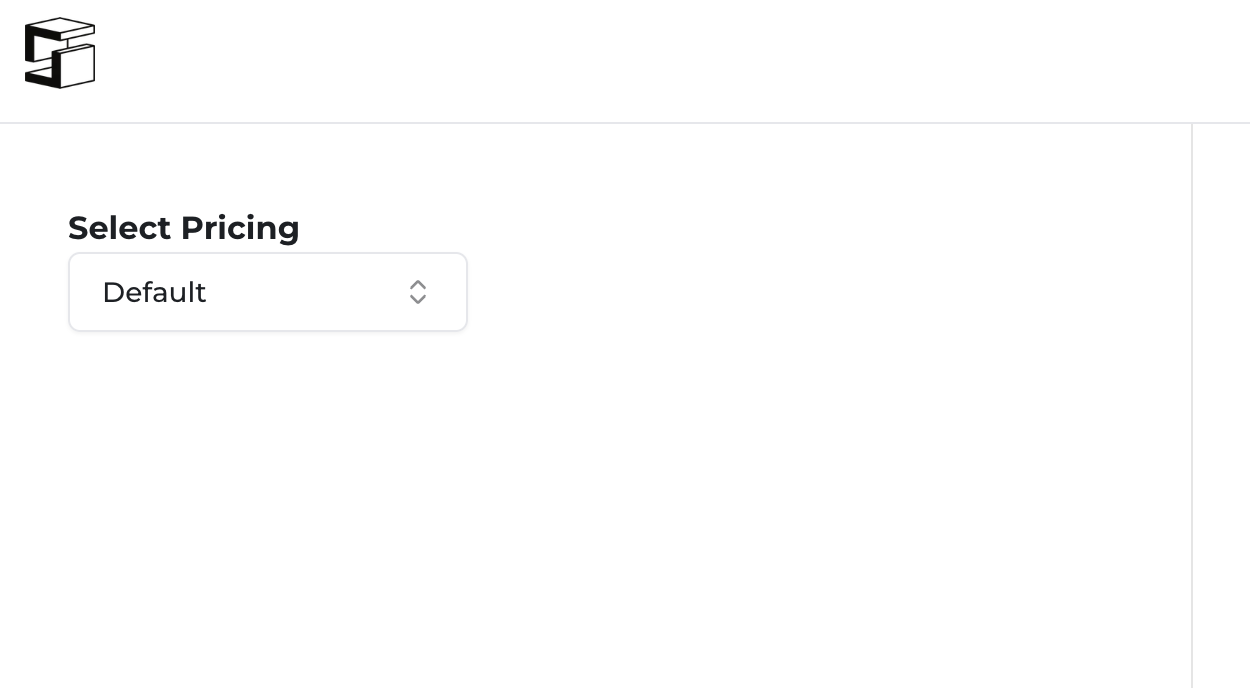
This will take you to the Pricing page, where there will be a "Default" pricing table selected under the "Select Pricing" label on the left side of the screen. In the middle of the screen there should be tabs representing your products. Go ahead and click on one of the tabs.
Creating Custom Pricing Tables
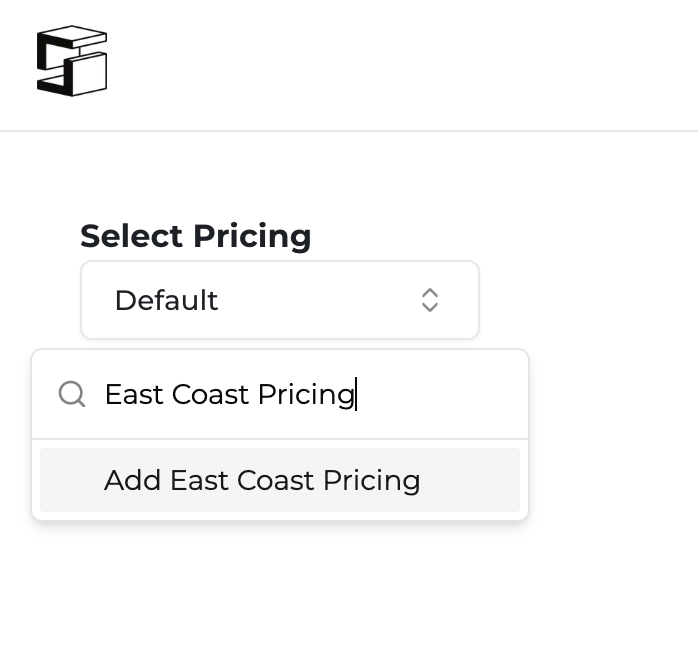
This will show you the Default pricing table. You can either adjust the prices in this table, or create your own table. To create your own table, click the drop down menu underneath "Select Pricing" and start typing what you want to call your new pricing table. Once you've finished typing the desired name of your pricing table, click "Add [NAME YOU TYPED]" in the drop down menu. This creates your new pricing table.
Refresh your page, and then click on the new pricing table in the dropdown menu. You will be able to click on the products tab and enter new pricing in the pricing table. These tables will be accessible any time you create a quote in Quote Builder. There isn't a save button because anything you enter on the Struction platform is automatically saved.