Performing Takeoffs
You can takeoff a retaining wall from construction drawings using 1 of two methods: plan view takeoff or elevation view takeoff. Put simply, if the wall is depicted in the drawings in a plan view, then use the plan view tool. If the wall is depicted in a profile or elevation view, use the elevation view.
The Takeoff Page
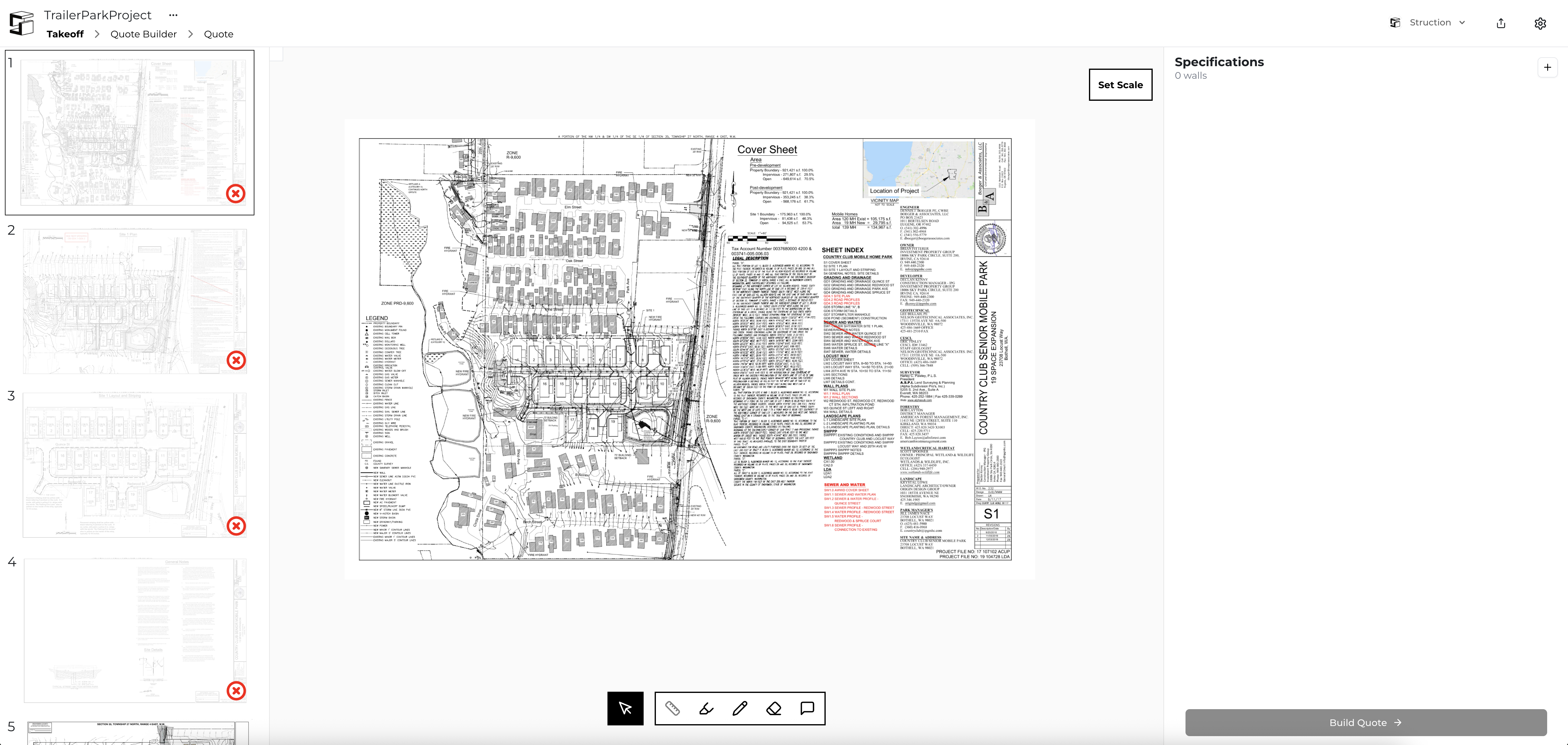
Before you takeoff a retaining wall, you should familiarize yourself with the takeoff page. The page contains three regions: PDF Thumbnails (left), PDF Viewer, and Specifications (right side).
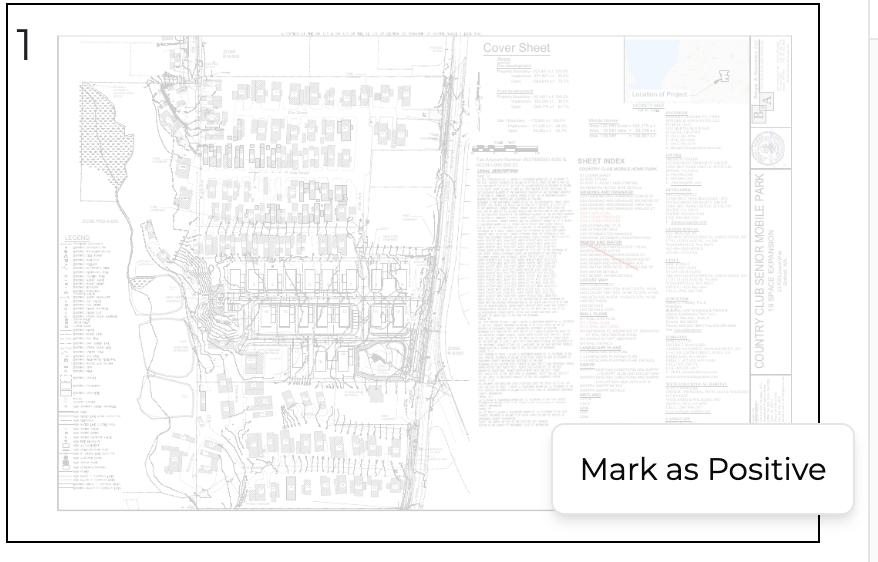
Our AI searches the drawing set to determine if there are retaining wall details on each page. If there is a red "X" on the thumbnail of the drawing (left side of the takeoff page), then our AI thinks there isn't any retaining wall information on that page. If there is a green check mark on the thumbnail of the drawing, then our AI thinks there is information pertaining to a retaining wall on that page. Sometimes our AI is wrong, though, so you shouldn't rely on it 100% of the time. If it is wrong, you can simply fix it by right clicking on the drawing thumbnail that it incorrectly assessed, and clicking "Mark as Positive" (if it was incorrectly negative), or "Mark as Negative" (if it was incorrectly positive).
To view any particular drawing page, simply click on the related drawing thumbnail and that drawing will show up in the center of the screen (the PDF Viewer).
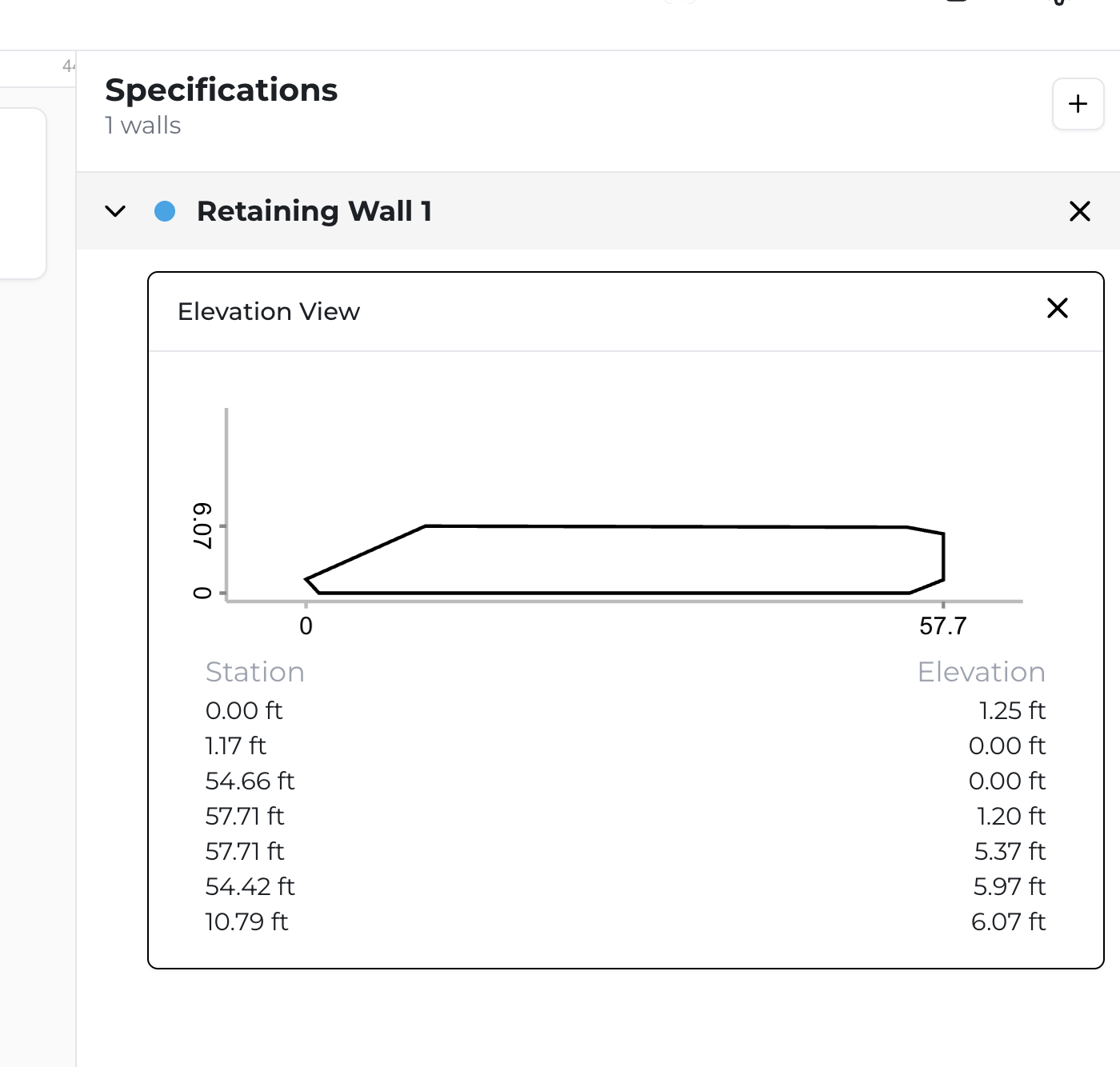
Any takeoffs you complete on the project will show up on the right hand side of the screen under "Specifications".
Takeoff Toolbar
At the bottom of the PDF Viewer is your toolbar. The cursor represents a panning tool that allows you to pan around the drawing by left clicking and dragging with your mouse. To the right of the cursor is the measuring tool - you can use this tool to measure anything on a drawing where you've already set the scale by clicking once, moving the cursor, and clicking again; if the measuring tool is ever greyed out, you need to set the scale first. To the right of the measuring tool is highlighter and drawing tool - to use either of these tools, simply select the tool and then click and drag on the drawing. Next is the eraser tool that allows you to erase drawings or highlights you might have made with the previous two tools by clicking on the drawing or highlight. Finally on the far right is the comment tool which allows you to click and add a comment - don't forget to hit enter or click the checkmark to save your comment.