The Canvas
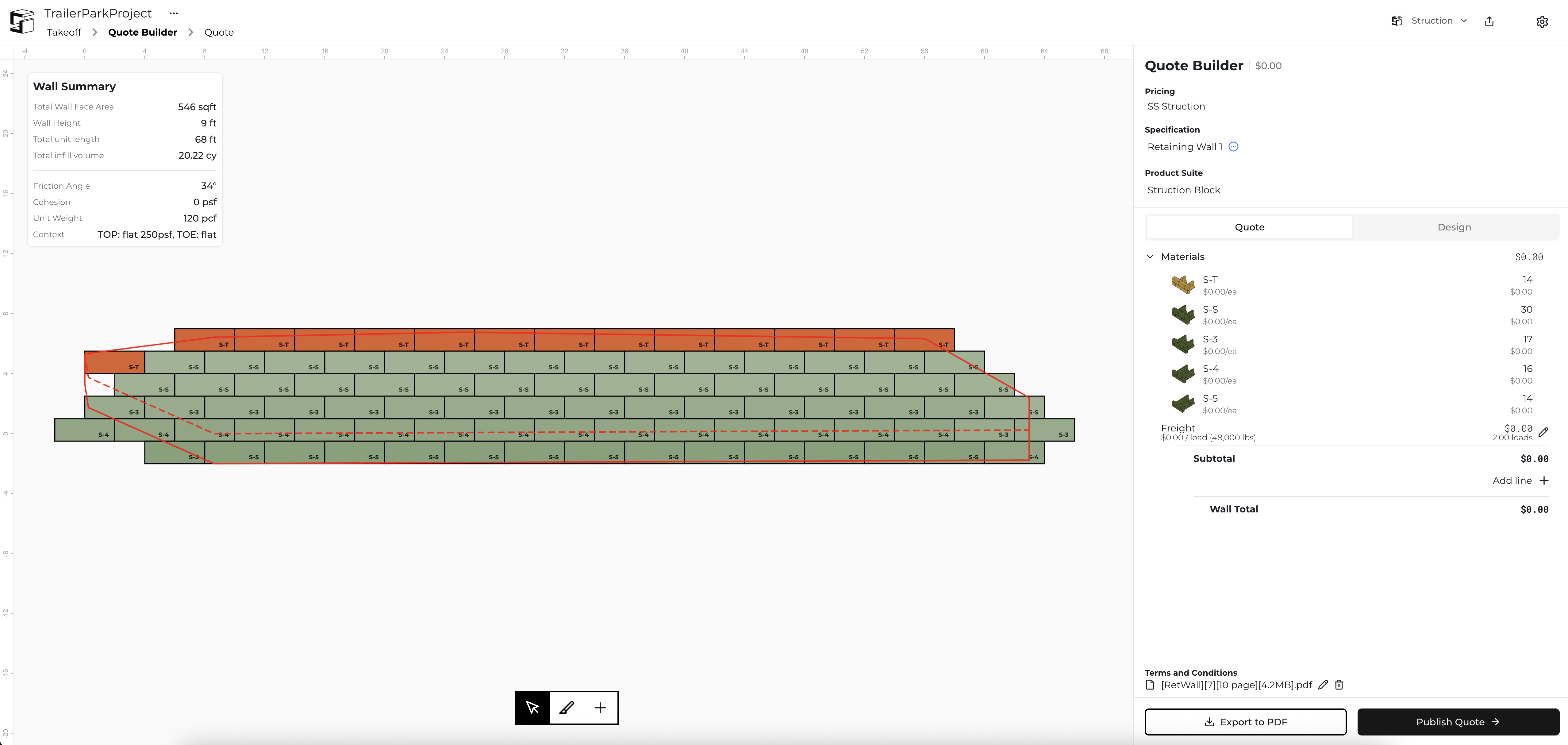
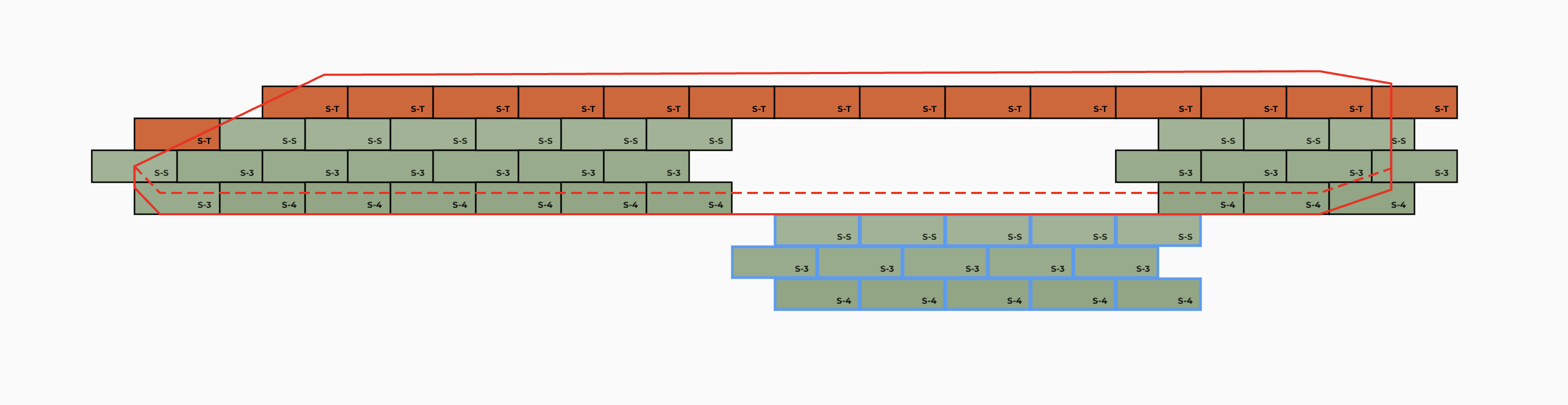
The Canvas is the middle portion of the screen where the retaining wall is displayed. In the upper left hand corner is the Wall Summary; on the right side of the screen is the Quote Builder. The Canvas has a toolbar at the bottom which provides different tools.
Editing Wall Units
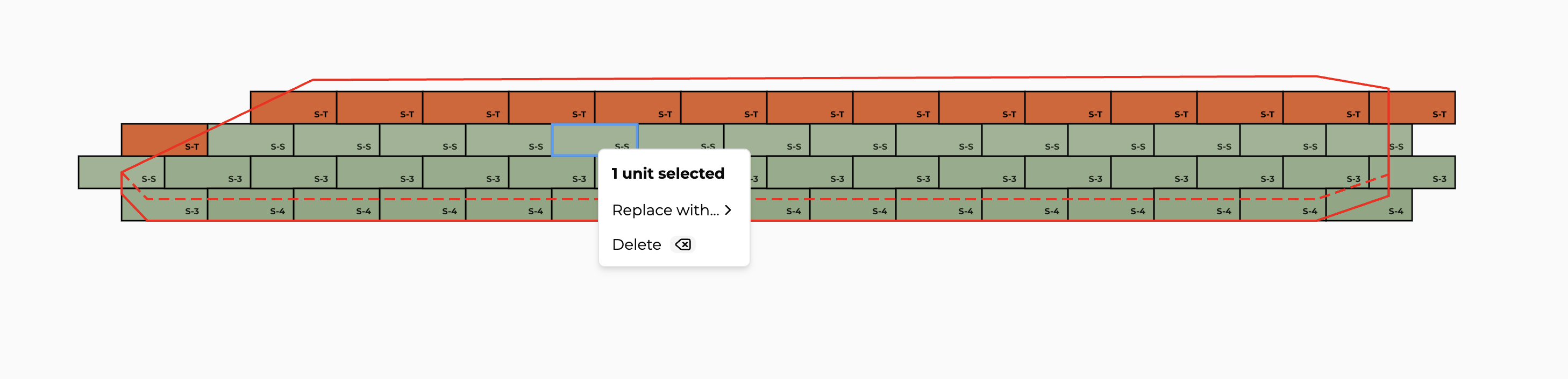
The Canvas allows you to individually edit the units populated in the wall. You can replace and delete units by right clicking on any unit. You can also group-select wall units by clicking and dragging. Once unit(s) are selected, you can click and drag to relocate that unit or group of units.
Cross-Section Analysis
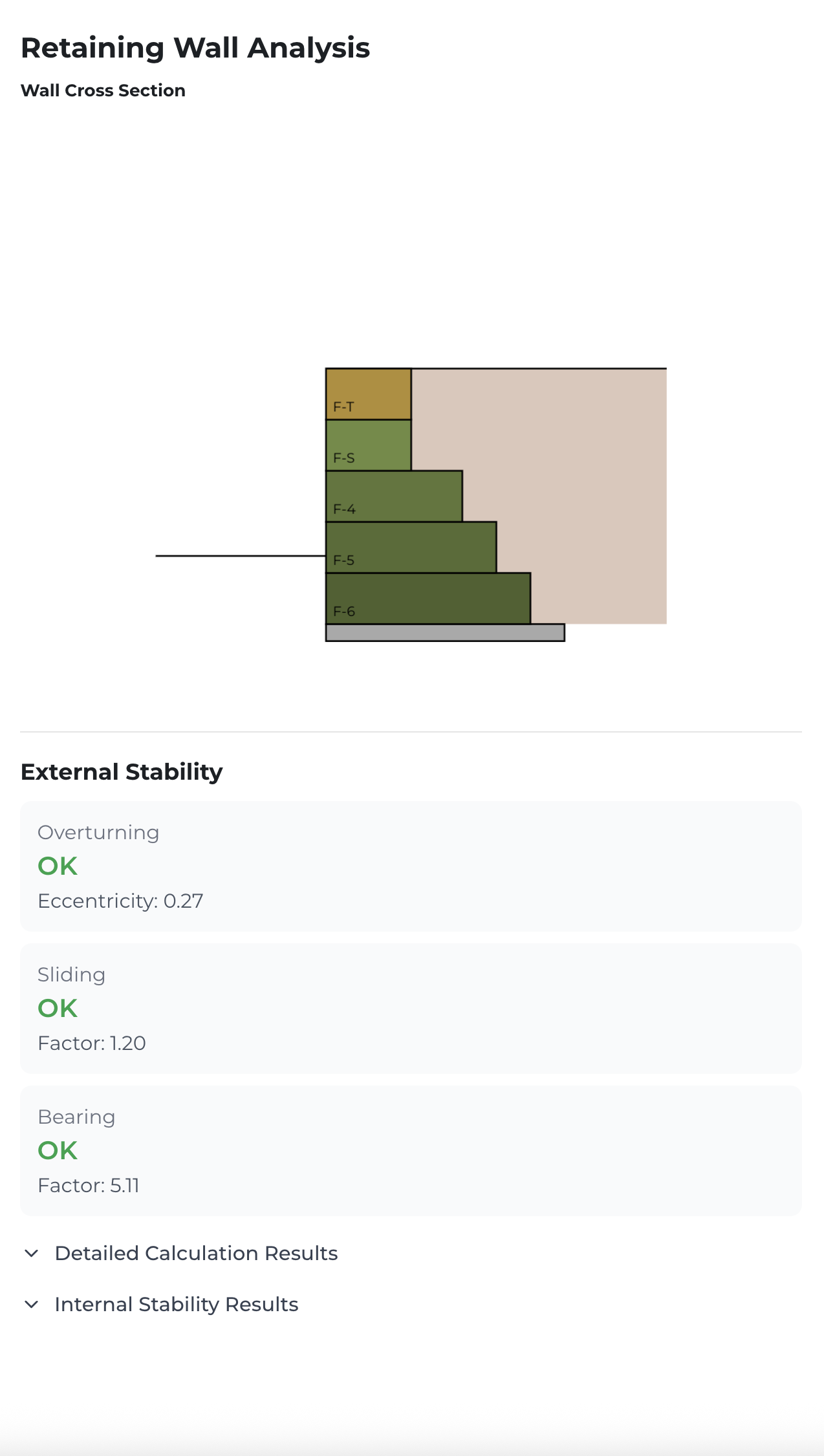
The Canvas also allows you to check out a cross section by clicking the cross-section tool in the toolbar at the bottom of the screen. This Tool also allows you to analyze the details of the design, including why that specific cross-section passes stability calculations. Currently, you are able to see if the cross-section as a whole, and incrementally, passes Overturning, Sliding, and Bearing failure modes. If it does, you will see a green "OK" beneath each failure mode. If it fails, it will said "FAIL" in red. For more details, you can click on "Detailed Calculation Results" and "Internal Stability Results".
Context and Loading Conditions
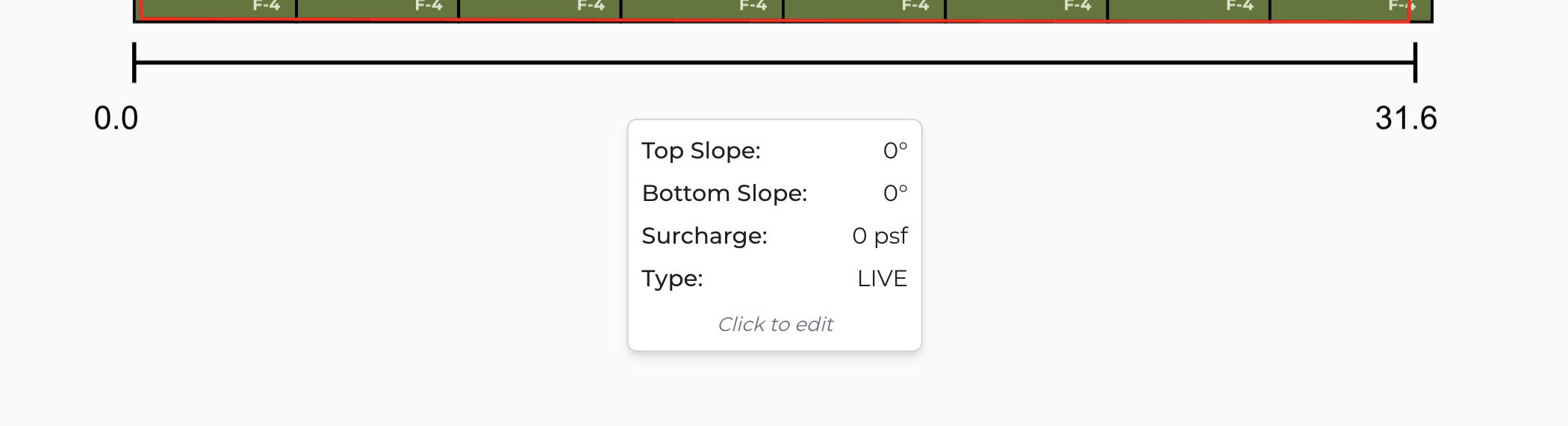
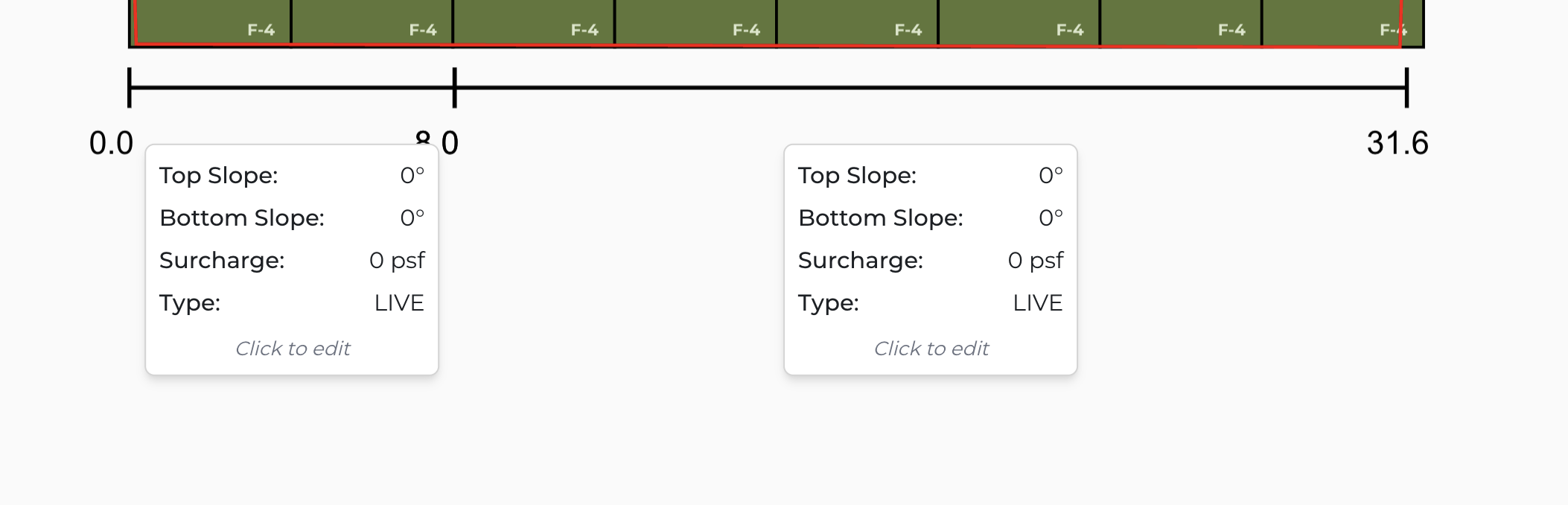
At the bottom of every wall, there is now a "Context" bar. This bar allows the user to add loading conditions or context based on the site conditions the wall exists in. To add a whole-wall context, simply click on the menu below the loading bar and input your context - you can input slopes above or below (in degrees) as well as surcharge and surcharge type.
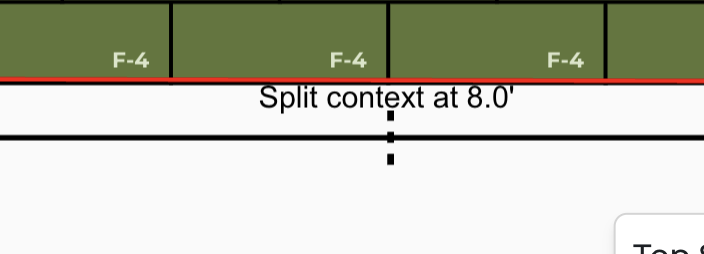
To add additional context across the wall, hover your mouse above the loading bar and click where you want to split context. You will then see two menu's - one for each context. You can split context as many times as required.
Adding Custom Units
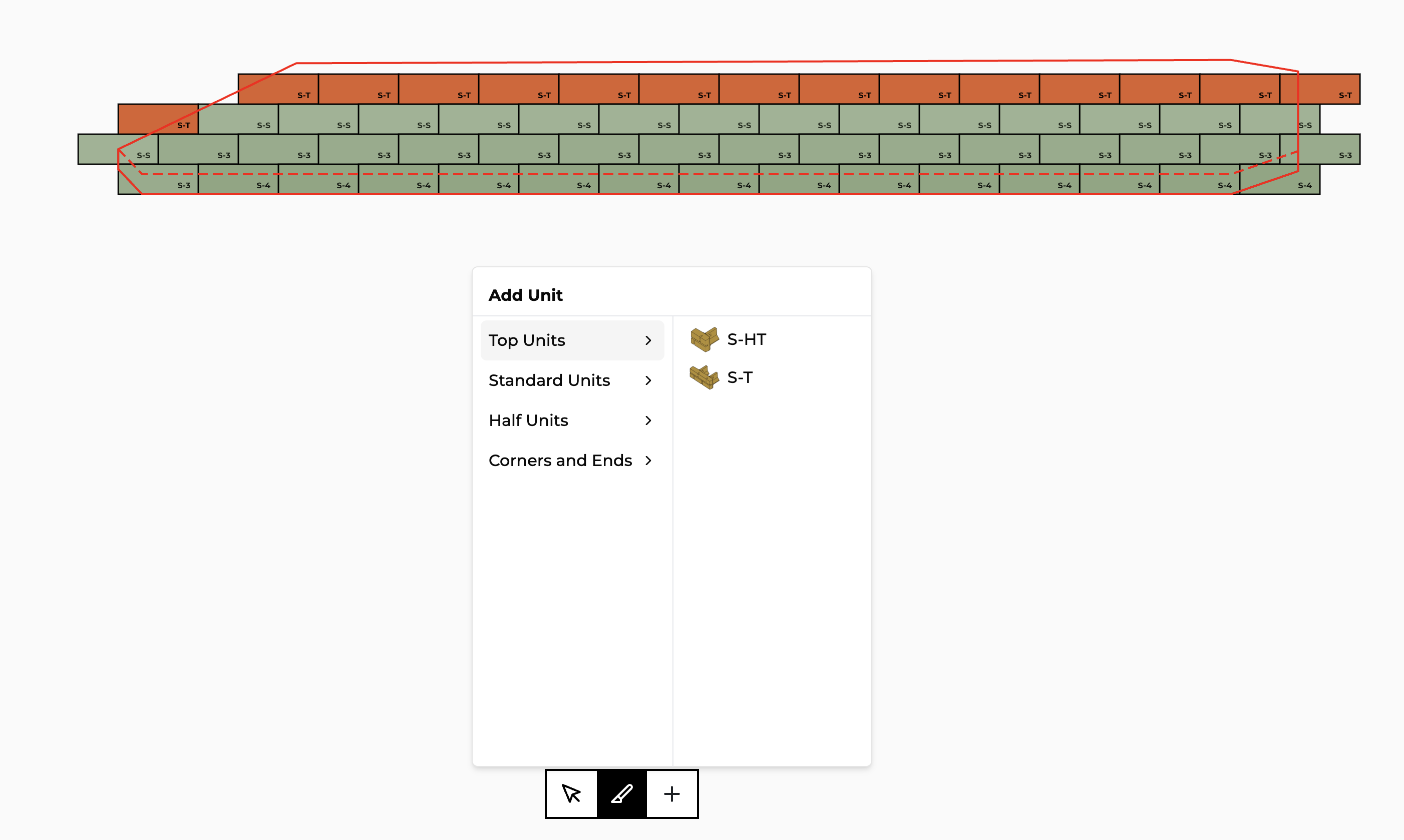
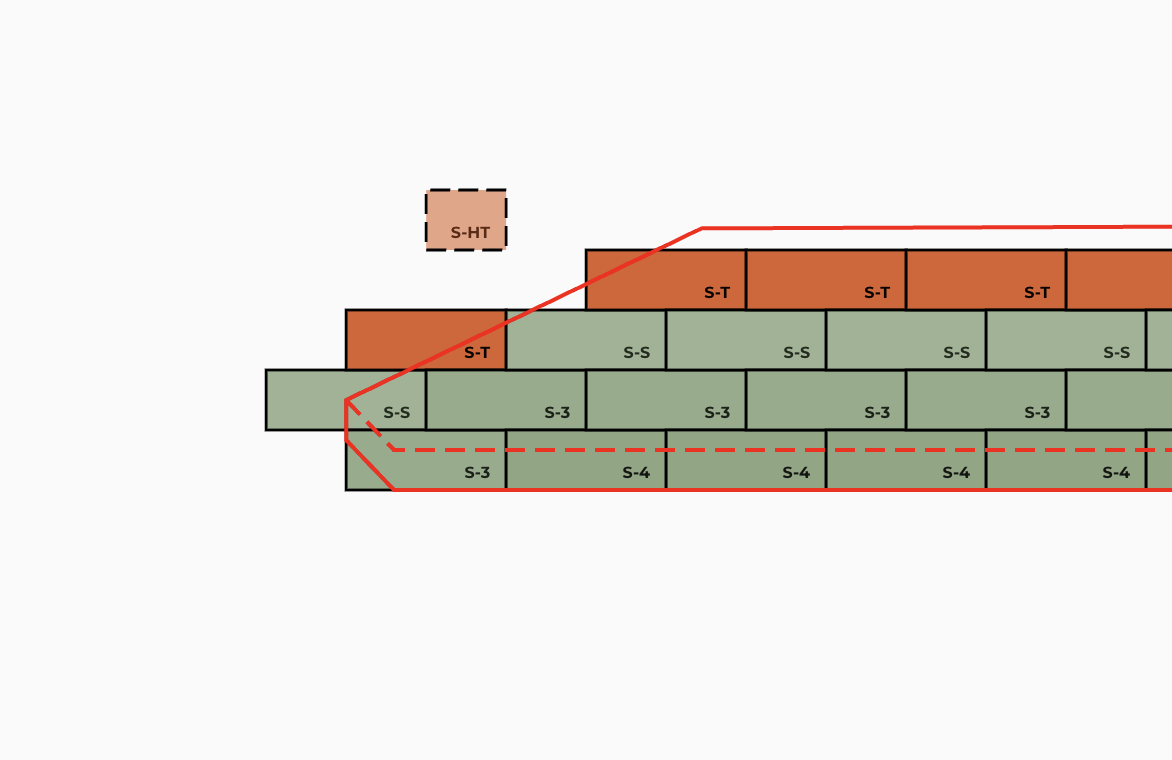
Finally, you can add any unit in your retaining wall system library to the wall, if desired, by clicking the "+" button on the toolbar. Simply select which category of units the desired unit is located within, and then click on the unit. The desired unit will then follow your cursor, and you can click to place anywhere on the canvas.