Elevation View Takeoff
If the retaining wall in the drawing is depicted in elevation or profile view, we can use the elevation view tool to takeoff the relevant data from the drawing. Make sure there is a scale set before performing an elevation view takeoff (or both horizontal and vertical scales set if the vertical scale differs from the horizontal scale), as the takeoff tool will not work unless there is a scale set.
Starting an Elevation View Takeoff
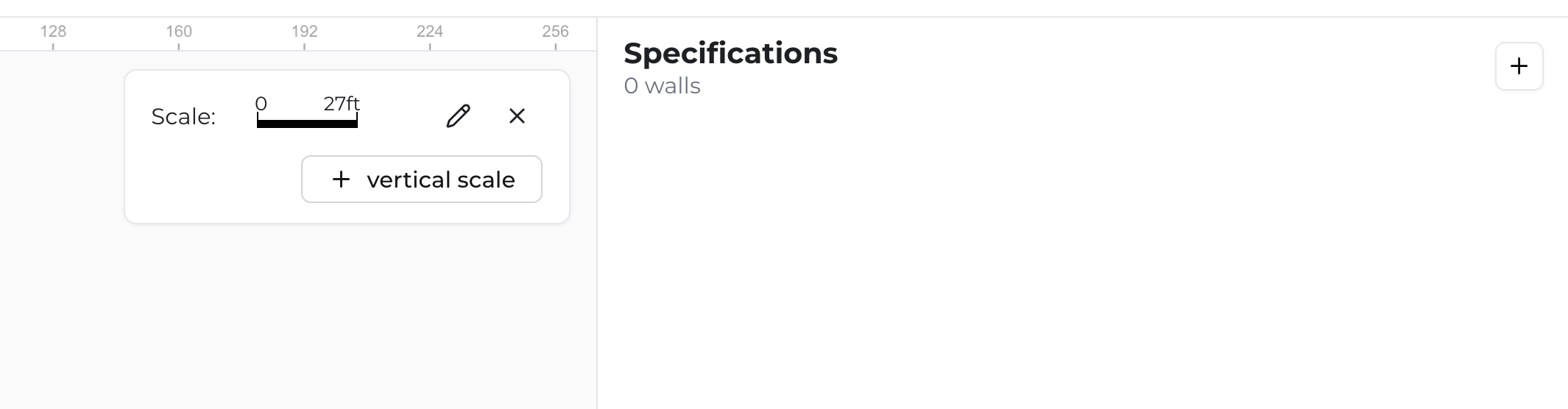
To start an elevation view takeoff, you first need to create a "Specification" by clicking the "+" button in the upper right hand corner. This tells the software that you have found a retaining wall and need to record data pertaining to that wall.
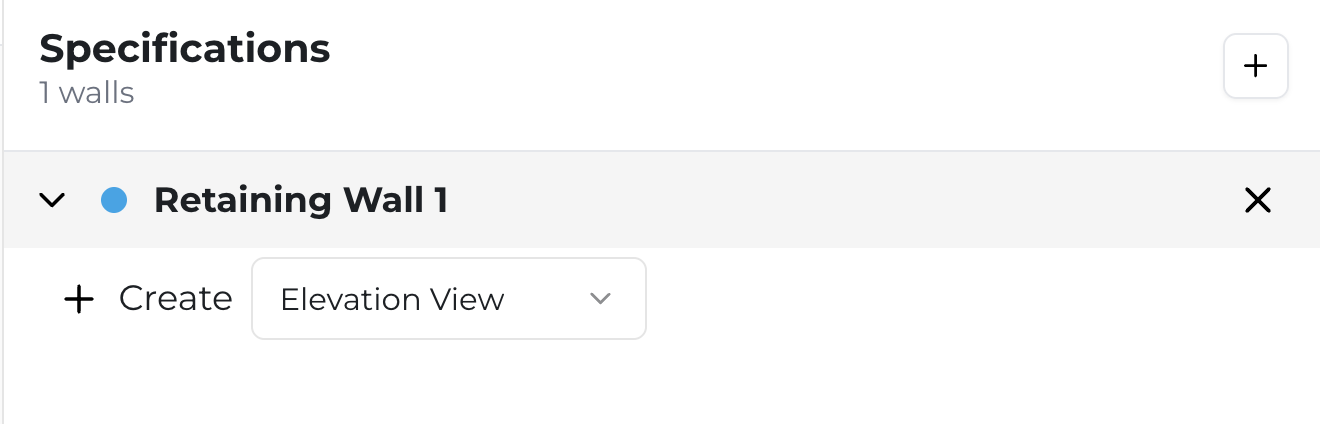
Once you have created a Specification, you need to select from the dropdown within your new specification the "Elevation View" takeoff tool. Once you have selected the "Elevation View" takeoff tool, click the "+" button immediately to the left of the word "Create" to start taking off the wall (Note: You can always change the name of each Specification / Retaining Wall by clicking the name - like "Retaining Wall 1" in this image - and typing in a new name).
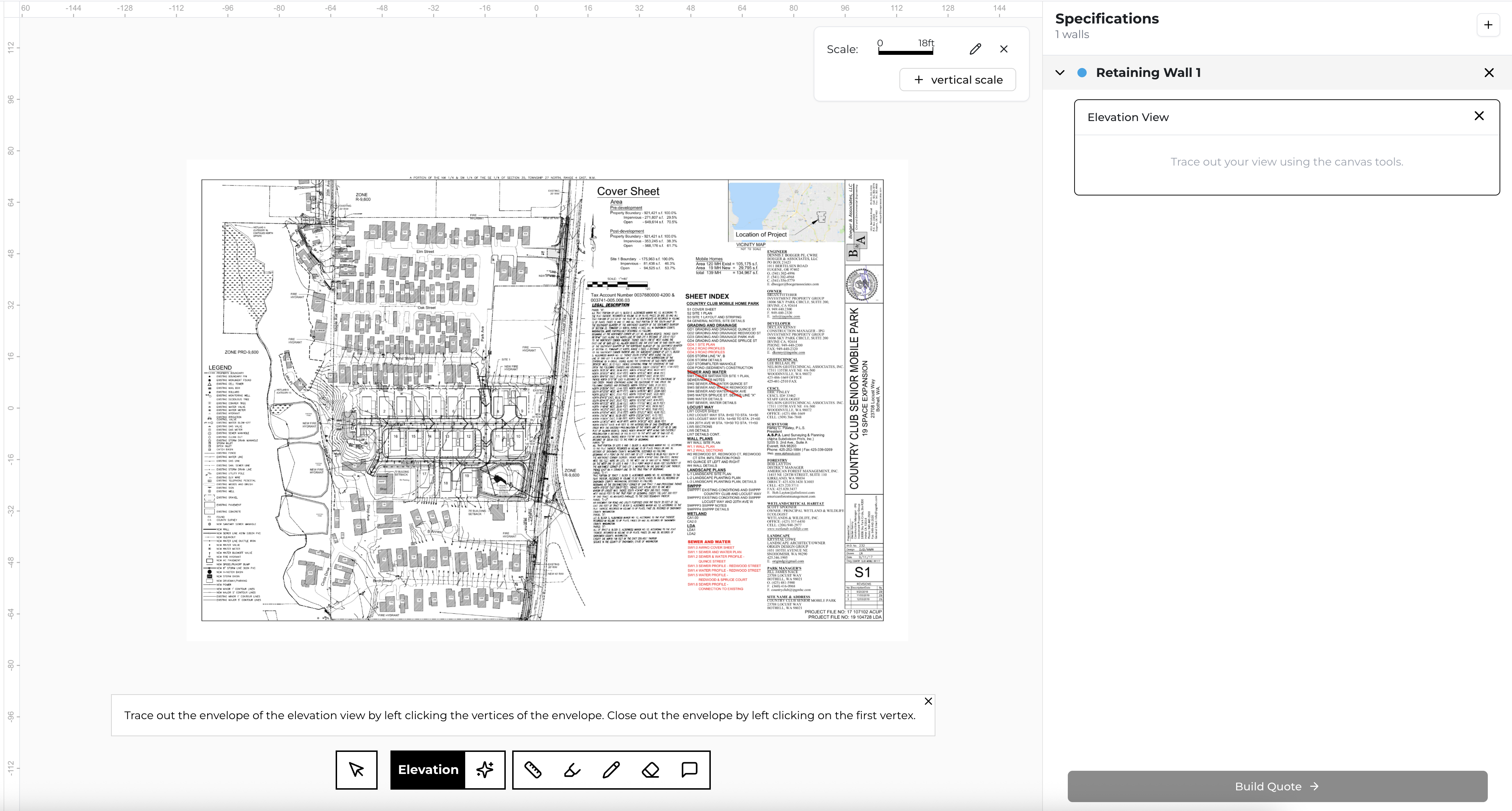
You will know that you are ready to takeoff the retaining wall when the "Elevation View" rectangular component beneath the Specification / Retaining Wall you want to takeoff is bordered in black and a black "Elevation" tool shows up in your toolbar (at the bottom of the screen).
Manual Tracing Method
The Elevation View takeoff process has one step, but two methods: (1) Manually trace the envelope of the retaining wall by placing vertices, or (2) you can use AI to take a stab at taking off the envelope.
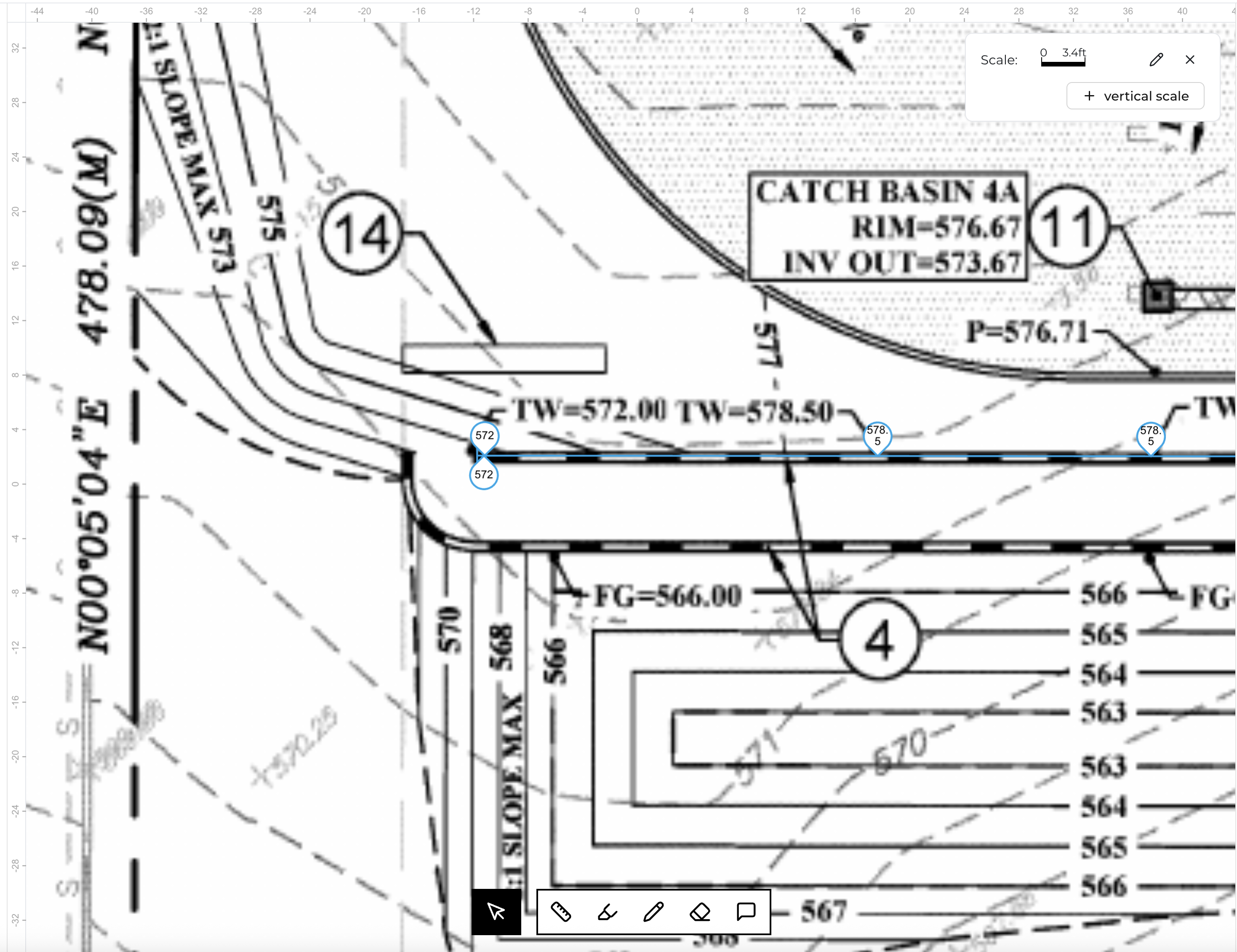
To trace the envelope of the wall, simply click along the edge of the wall to add vertices in a sequential order. Click on one corner of the envelope to add the first vertex, and then move your cursor to some other next point along the outline of the wall and click to add a second vertex. Keep adding vertices to follow the outline of the wall as best you can. You'll see that Struction starts to draft a polygon between the vertices you have created and dynamically tells you the length between your last two vertices.
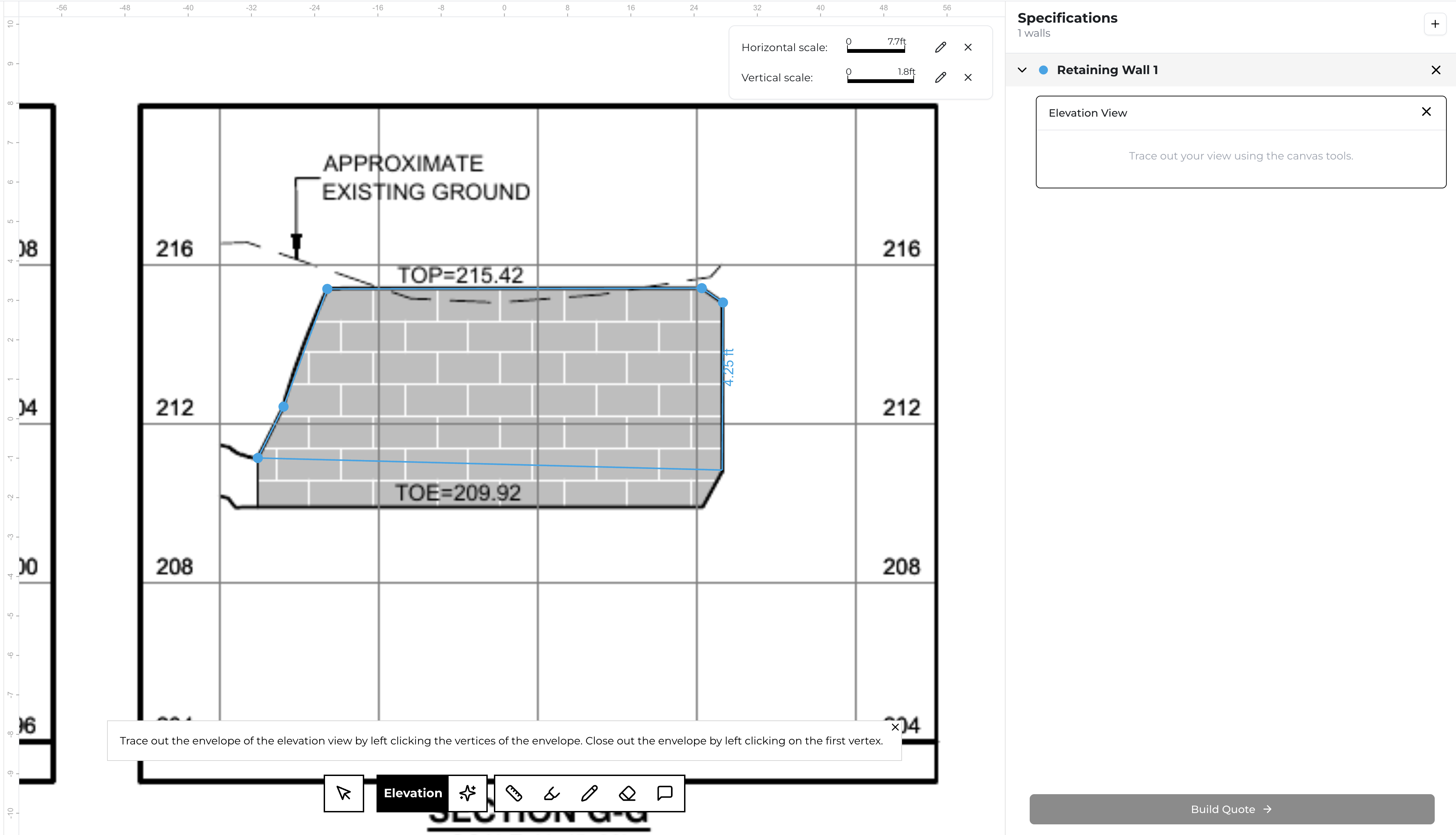
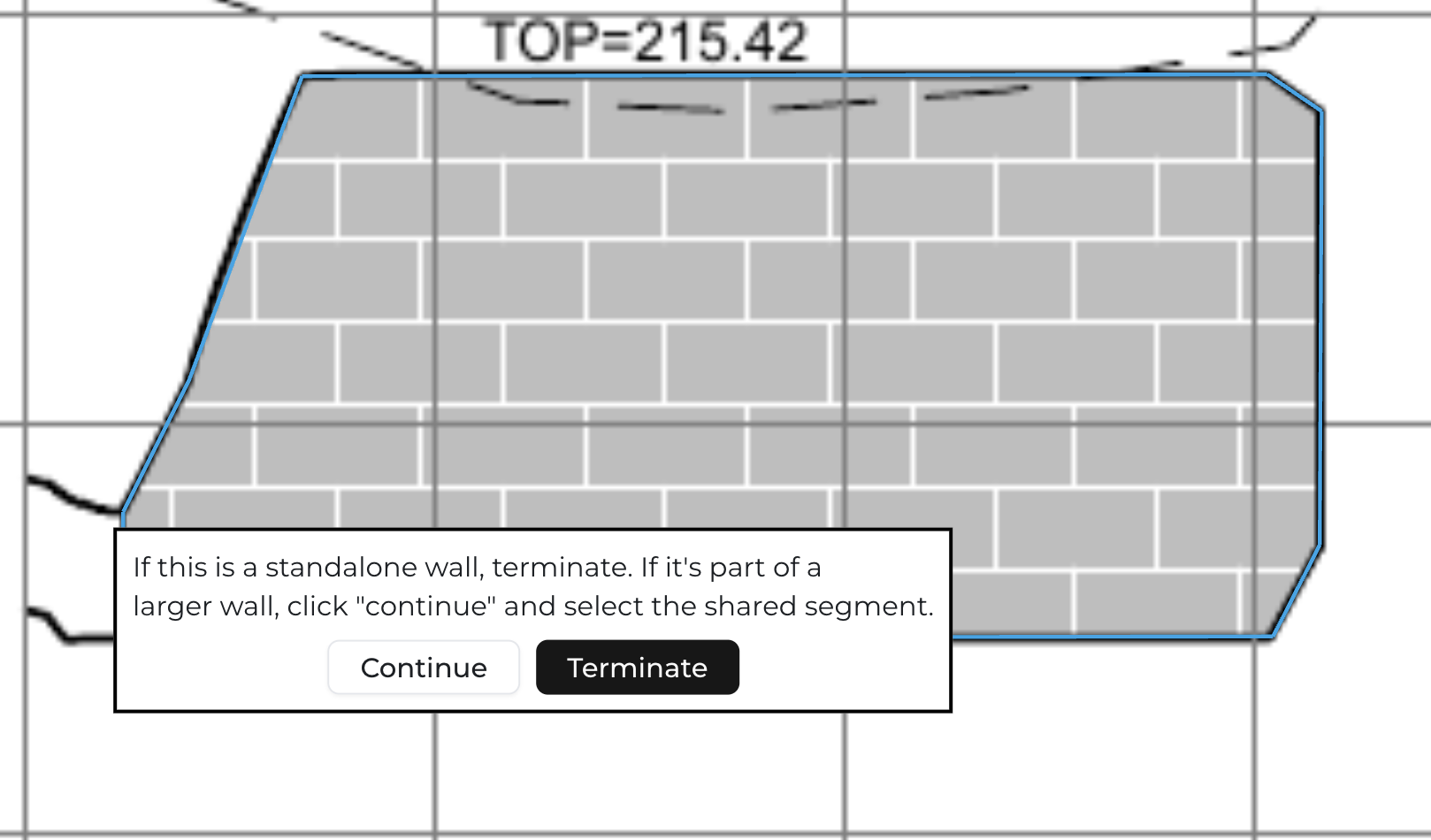
Once you have completed your trace of the outline of the wall, click your first vertex once more to complete the polygon. You'll be prompted with, "If this is a standalone wall, terminate. If it's part of a larger wall, click "continue" and select the shared segment". If you've traced the entirety of the wall, click "Terminate". If you've reached a match-line of the retaining wall, click "Continue".
Continuing with Match-Lines
If you hit "Continue" because you've reached a match-line of the retaining wall, the tool will need you to select which segment of the polygon should be the match-line. As you hover over different segments, each segment will "glow". Click the correct segment which should be the match-line. Similar to plan view, a match-line will then follow your cursor and you can start the next portion of the wall by matching that match-line with the match-line on the next elevation view, as shown below. If the next segment of the retaining wall is on a different page, be sure to set the scale before you continue your takeoff by clicking "Set Scale". After you are done setting the scale, the match-line will re-populate on your cursor and you can continue your takeoff. You can keep doing match-lines as long as you need to to takeoff your wall.
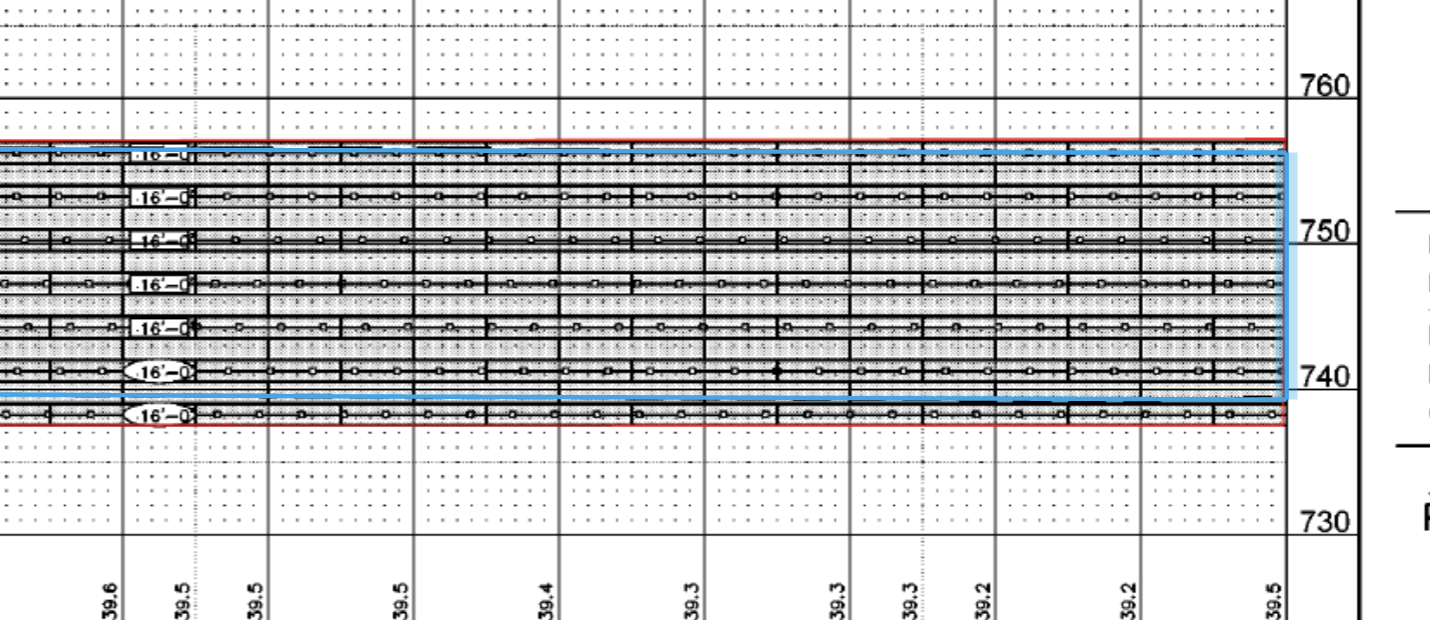
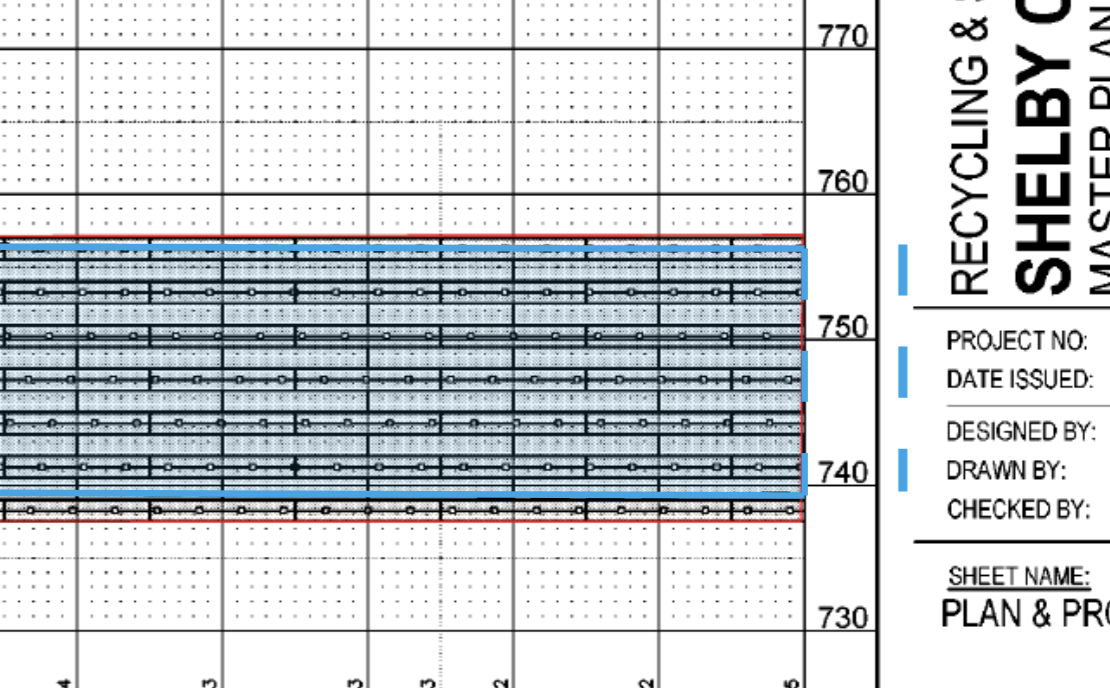
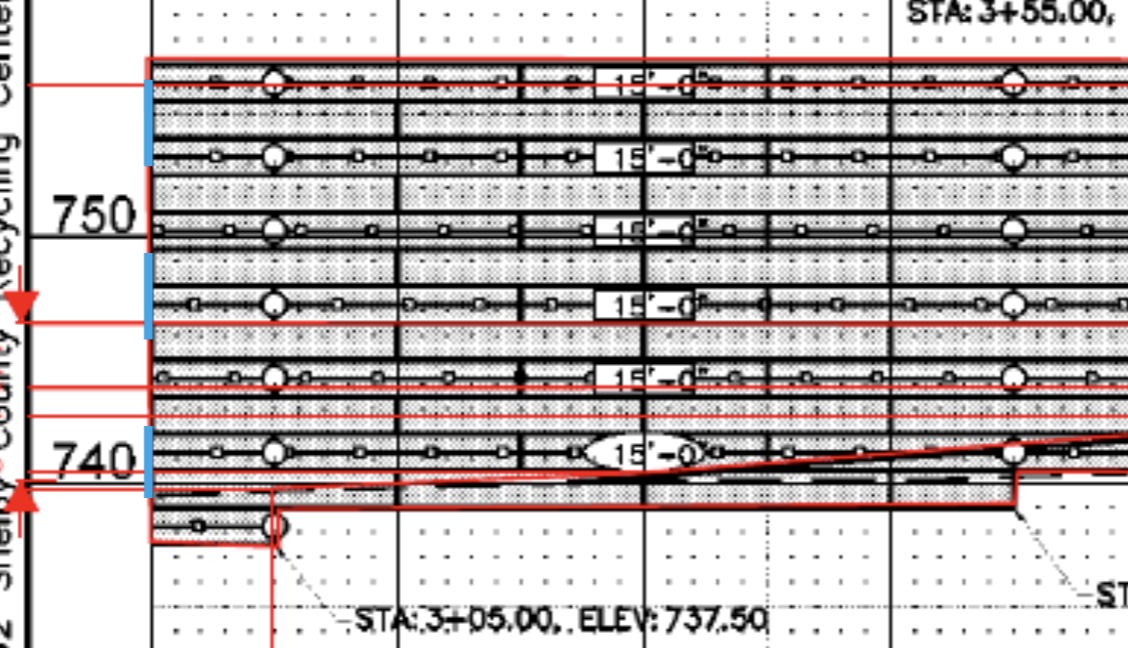
If you hit "Terminate" because you've finished taking off the elevation of the wall, click the Cursor tool in the toolbar to exit the Elevation view takeoff tool.
AI-Assisted Takeoff
Some people may want to use AI to takeoff their elevation view. Instead of using the "Elevation" tool in the toolbar, click the shimmering star immediately to the right of the Elevation tool.

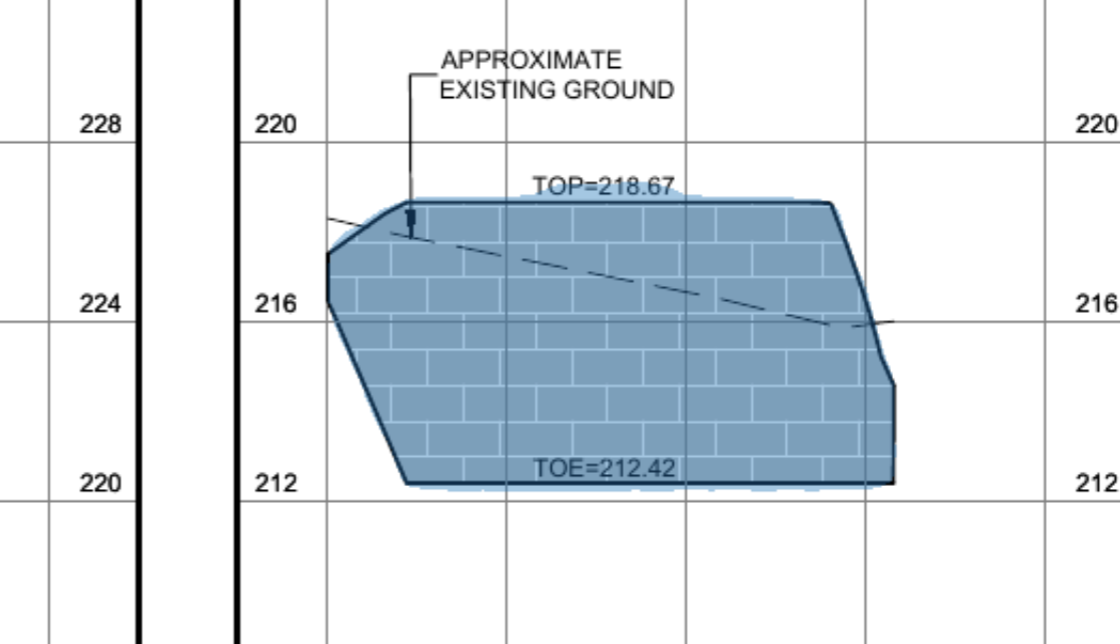
You can then move your cursor around the page and AI will show you segmentations related to the location of your cursor. Move your mouse until you find a segmentation that best fits your retaining wall envelope and then click. AI has just taken off your wall!
Editing Polygons
If you ever need to modify your polygon after the fact, simply click on the View underneath your Retaining Wall Specification, and then double click inside the polygon. You can then manipulate all the vertices as you see fit by clicking and dragging them.
