Plan View Takeoff
If the retaining wall in the drawing is depicted in plan view, we can use the plan view tool to takeoff the relevant data from the drawing. Make sure the scale is set before performing a plan view takeoff, as the takeoff tool will not work unless there is a scale set.
Starting a Plan View Takeoff
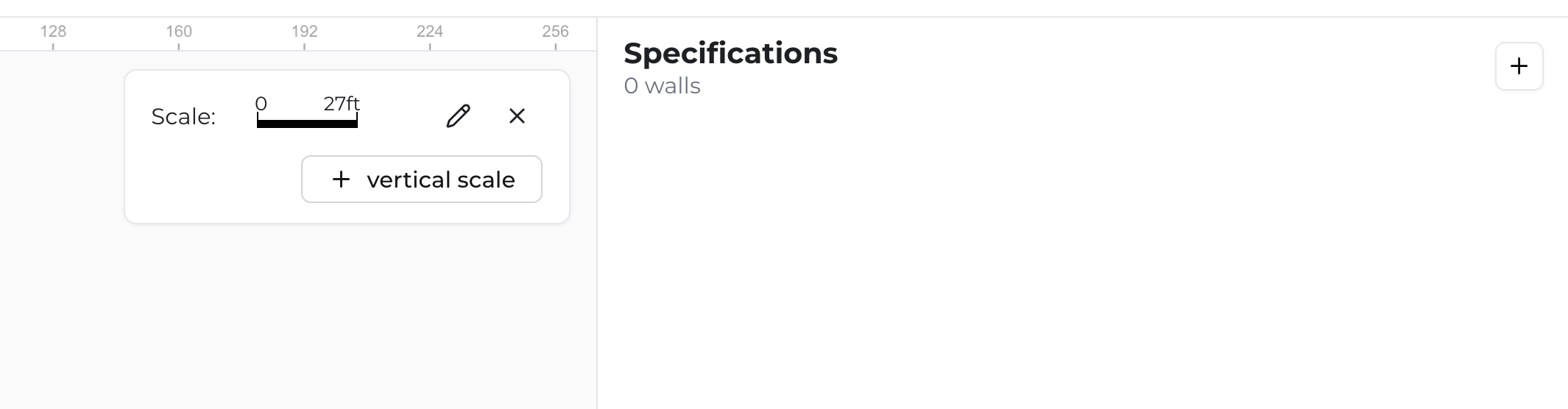
To start a plan view takeoff, you first need to create a "Specification" by clicking the "+" button in the upper right hand corner. This tells the software that you have found a retaining wall and need to record data pertaining to that wall.
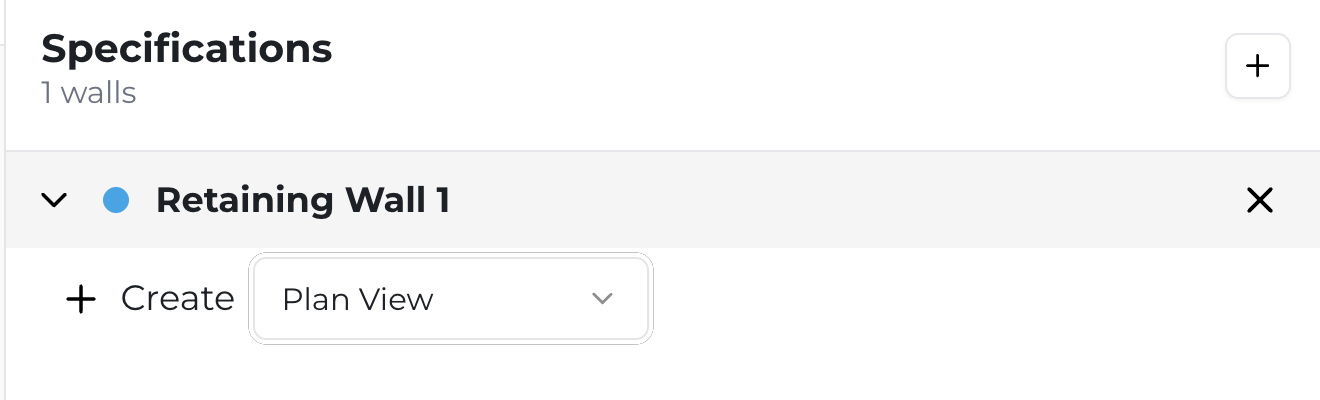
Once you have created a Specification, you need to select from the dropdown within your new specification the "Plan View" takeoff tool. Once you have selected the "Plan View" takeoff tool, click the "+" button immediately to the left of the word "Create" to start taking off the wall (Note: You can always change the name of each Specification / Retaining Wall by clicking the name - like "Retaining Wall 1" in this image - and typing in a new name).
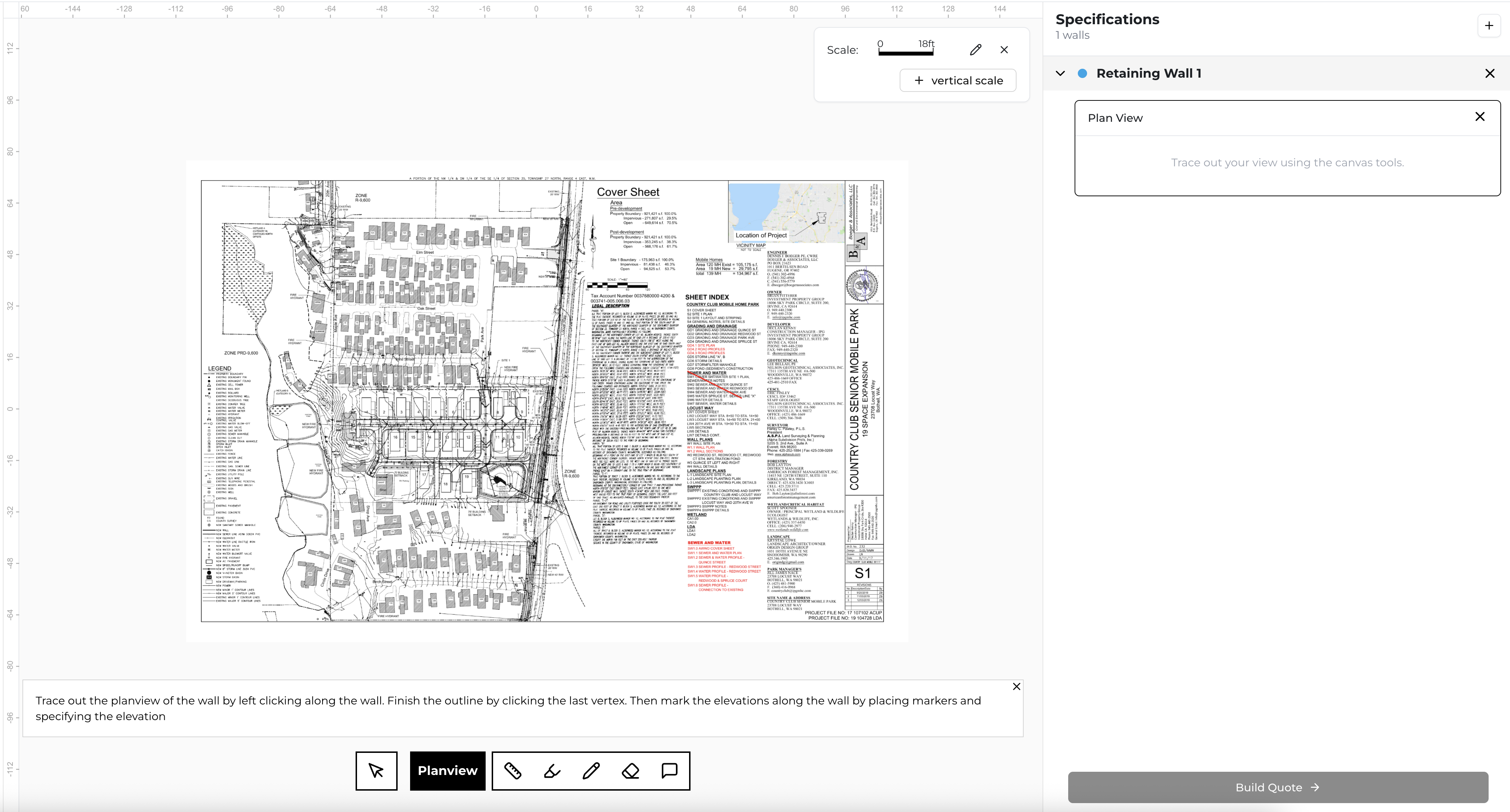
You will know that you are ready to takeoff the retaining wall when the "Plan View" rectangular component beneath the Specification / Retaining Wall you want to takeoff is bordered in black and a black "Planview" tool shows up in your toolbar (at the bottom of the screen).
Tracing the Wall
The Plan View takeoff process has two steps: (1) Trace the line of the plan view retaining wall to record the horizontal "run" of the wall, including its bends, corners, and radii; (2) Add elevation "markers" to the trace line to record the elevation data of the wall relative to the "run" of the wall.
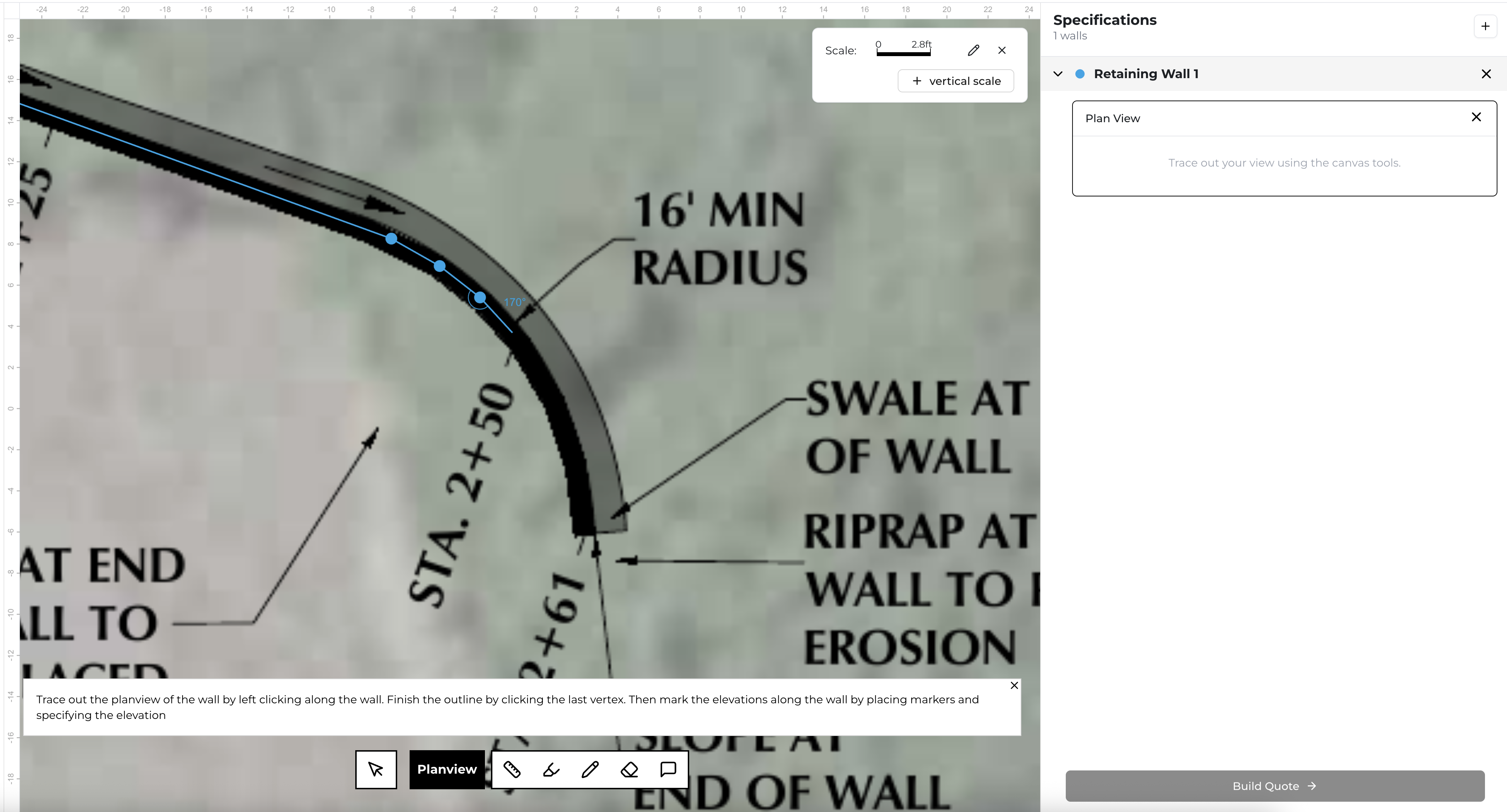
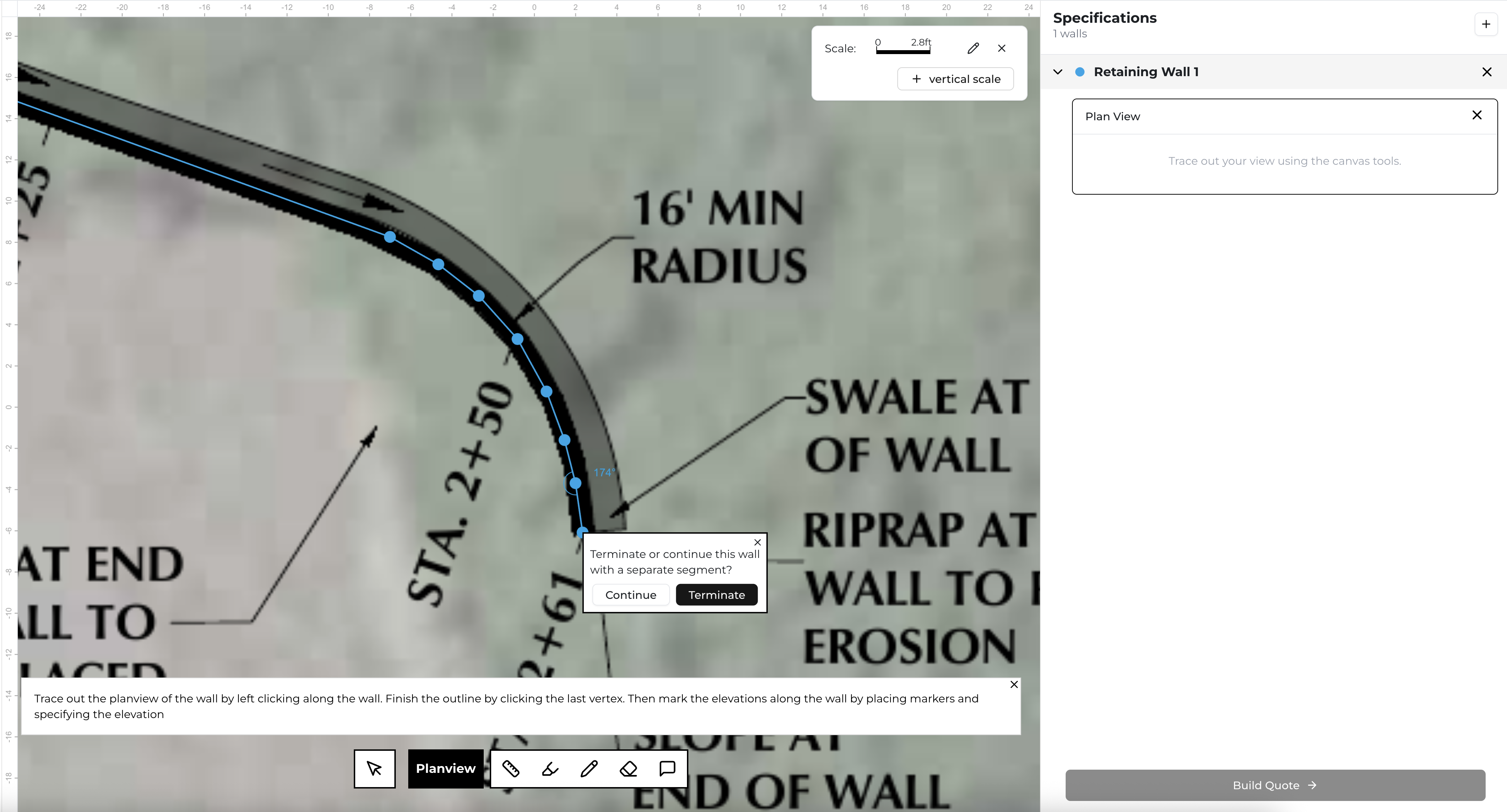
To trace the horizontal "run" of the wall, simply click along the wall to add vertices. Click on one end of the wall to add the first vertex, and then move your cursor to some other point along the wall and click to add a second vertex. Keep adding vertices to follow the line of the wall as best you can. To trace a hard turn, place a vertex at the corner and continue on. To trace a radius, simply place multiple vertices to "segment" the radius.
Once you have completed your trace of the wall, click your last vertex one more. You'll be prompted to "Terminate or continue this wall with a separate segment?" If you've traced the entirety of the wall, click "Terminate". If you've reached a match-line of the retaining wall, click "Continue".
Continuing with Match-Lines
If you hit "Continue" because you've reached a match-line of the retaining wall, the tool will show a match-line attached to your cursor. This match-line should be used as the first vertex in the next segment of the retaining wall. If the next segment of the retaining wall is on a different page, be sure to set the scale before you continue your takeoff by clicking "Set Scale". After you are done setting the scale, the match-line will re-populate on your cursor and you can continue your takeoff. You can keep doing match-lines as long as you need to to takeoff your wall.
Adding Elevation Markers
If you hit "Terminate" because you've reached the end of the wall, you'll see a little "bubble" float alongside the line you just traced that follows your cursor location. You'll use this bubble to mark elevations along the retaining wall. It's important which side of the retaining wall you place the elevation markers. You should determine which side of the wall is the "top of wall" and which side is the "bottom of wall". Be sure to place the lower elevations on the "bottom of wall" side and the higher elevations on the "top of wall side" - this is how Struction determines which way the wall should face.
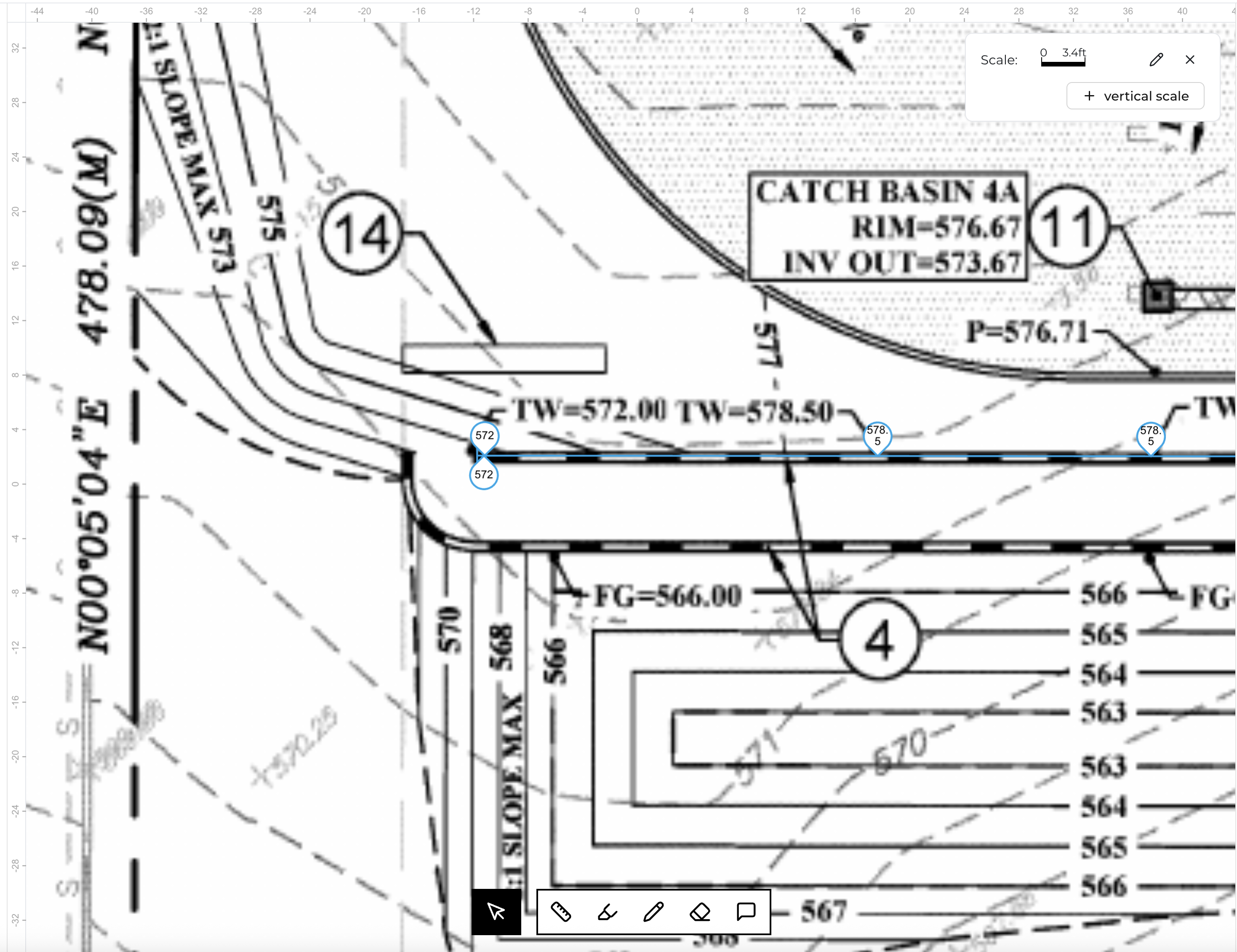
Place elevation markers for every known elevation - the more data, the better. You can use the profile view of your takeoff on the right side of the screen underneath the Retaining Wall specification to "check" and make sure the elevations you are marking make sense to Struction. NOTE: If something ever looks wonky with your profile view, additional data will often rectify errors. You can even add elevations where the drawings don't explicitly state an elevation but you're confident in the elevation to help remedy issues.
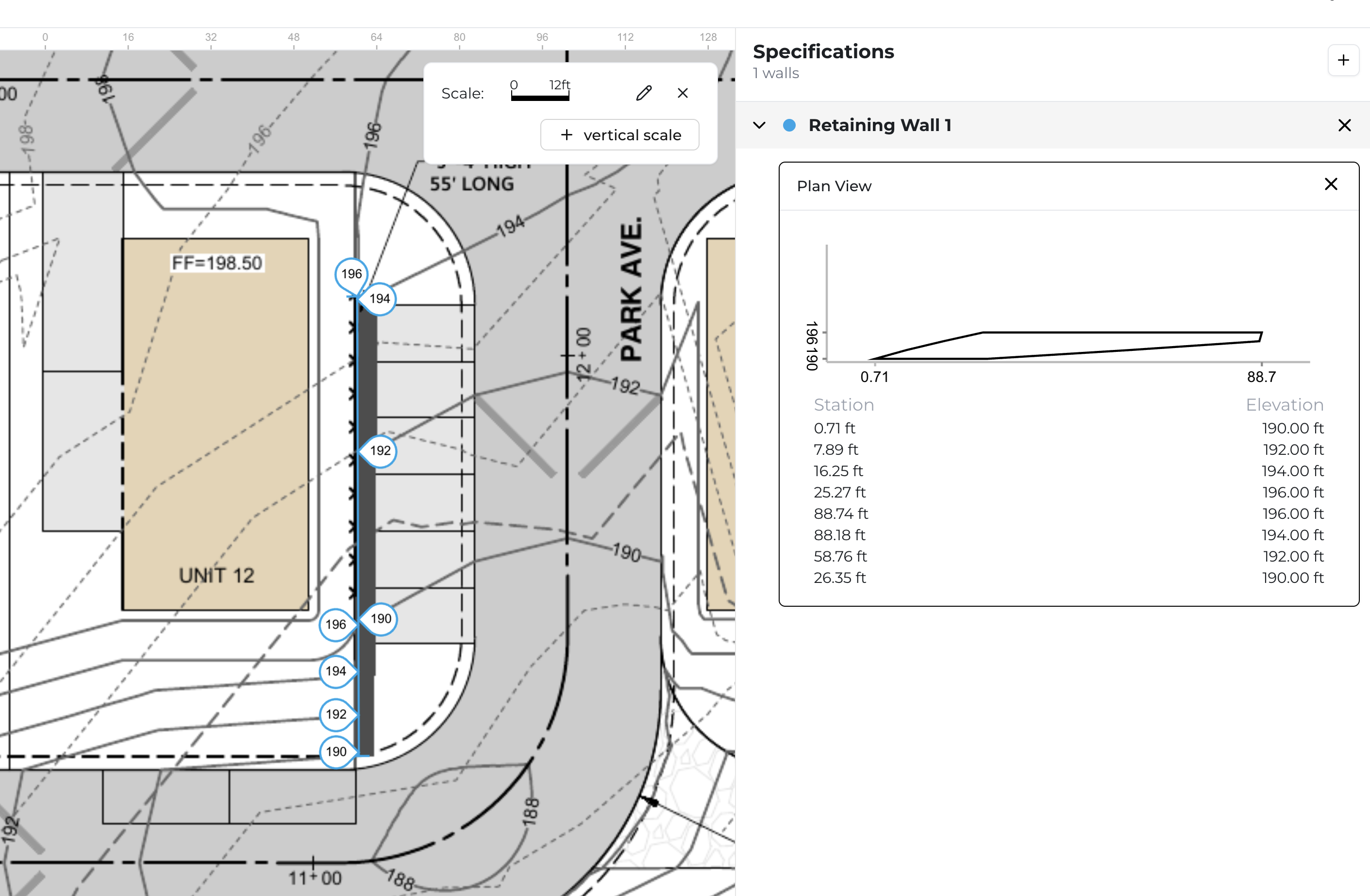
Once you're complete with your plan view takeoff, click the Cursor tool in the toolbar to exit the Plan view takeoff tool.

To repeat for multiple plan view retaining walls, simply start back at step #1 for Plan View takeoff. Or, if you have another wall in elevation view, checkout the Elevation View takeoff instructions.